
VS Code Extension
Available on the VS Code Marketplace
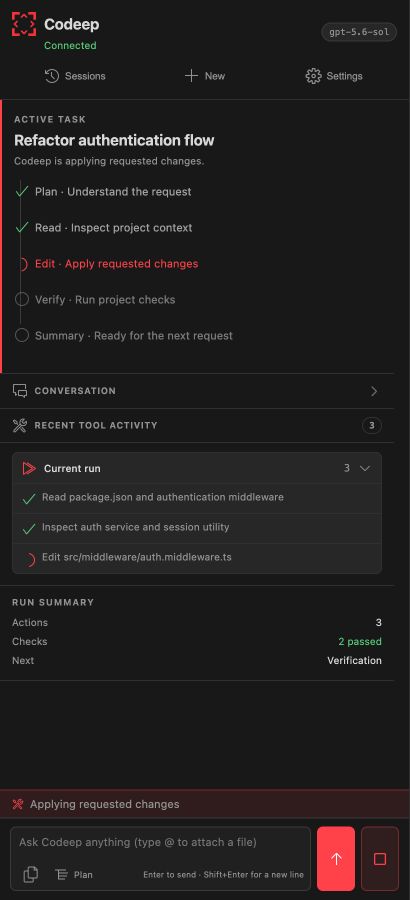
Codeep is available as a VS Code extension. It connects to the Codeep CLI via ACP and brings the full agent experience into your editor sidebar.
Installation
First, make sure the Codeep CLI is installed:
Then install the VS Code extension:
Or open VS Code, press Cmd+Shift+X, search for Codeep, and click Install.
Usage
Open the Codeep panel from the activity bar (look for the ⟨⟩ icon), or press Cmd+Shift+C. The extension connects to the CLI automatically.
Features
- @codeep chat participant — invoke Codeep from VS Code's native Chat view (@codeep, /explain, /review); answers come from your configured Codeep model via the CLI
- #codeepSkills agent tool — exposes your workspace's Codeep skill bundles to VS Code agent mode so it follows your project's workflows
- Generate Commit Message — a sparkle button in the Source Control panel turns your staged diff into a Conventional Commits message
- Sessions tree view — browse, load, and delete past conversations from the sidebar
- MCP config validation — JSON schema + autocomplete for .codeep/mcp_servers.json
- Code Actions (lightbulb, Ctrl+.) — Explain, Improve / refactor, Add tests, Add doc comment on a selection, plus a Fix this problem quick-fix on errors and warnings
- Model picker in the status bar — click Codeep · <model> to switch provider + model; type a model id for OpenRouter / ModelScope / Ollama / custom endpoints
- Self-hosted endpoints from settings — point at vLLM / LiteLLM / LM Studio via codeep.baseUrl + codeep.provider + codeep.model
- Get Started walkthrough (Help → Get Started) — CLI install, opening the chat, editor actions, choosing a model
- Chat sidebar with streaming responses and markdown rendering
- Live agent plan — multi-step tasks render as a checklist that updates in place
- Reasoning stream — collapsible Thinking card surfaces the model's reasoning when available
- Session browser — list, load, and delete past conversations
- Inline permission prompts with diff preview — see the exact change or command before clicking Allow
- Native VS Code diff editor for proposed file edits — full syntax highlighting, gutter markers, your editor settings (opens alongside the inline card, closes after you respond)
- Accept / Reject CodeLens inside the diff — resolve a write/edit permission from the diff editor itself, without going back to the chat sidebar
- Attach Active File command (Cmd+Shift+A) — prepends @<path> to the chat input without auto-sending, so you can type your question with the file already in context
- Settings panel — switch AI model, provider, language, and mode
- @file and @symbol mentions — type @ in the input to attach a workspace file or jump to a function/class/method via VS Code's symbol index
- Auto-reconnect with exponential backoff if the CLI crashes
- Send selected code to chat with Cmd+Shift+X
- Right-click any file → Codeep: Review Current File
- Codeep: Show Audit Record — what agents touched in this project, and what the boundary refused
- Tool call display — see what the agent is doing in real time
- Set API keys from the Command Palette — shared automatically with the CLI
Setting API Keys
Open the Command Palette (Cmd+Shift+P) and run Codeep: Set API Key. Pick a provider, paste the key, and you're done — no terminal required.
~/.config/codeep/config.json). If you later install the CLI on the same machine, it picks up the key automatically and skips the welcome screen.Keyboard Shortcuts
| Shortcut | Action |
|---|---|
Cmd+Shift+C | Open Codeep chat |
Cmd+Shift+X | Send selected code to chat |
Cmd+Shift+I | Inline edit the selection in place |
Cmd+Shift+A | Attach the active file as context |
Cmd+. | Code Actions lightbulb (Explain / Fix / Add tests / …) |
Enter | Send message |
Shift+Enter | New line in input |
Custom agents
Use the Codeep agent selector to activate a built-in personality or a synced custom-bot/v1 specialist. The detail view shows its model, allowed tool groups, and project scope before activation. Sync from dashboard pulls changes through the configured Codeep CLI.
codeep acp process it already uses, so CLI, VS Code, and the dashboard cannot drift into separate bot formats.Permission Modes
The extension supports two modes, switchable from the Settings panel:
- Auto — agent acts freely, no confirmations required
- Manual — agent asks for approval before writing files or running commands
codeep.cliPath in VS Code settings.